

In competitive play, milliseconds decide whether you clutch the round or watch the replay wondering what went wrong. If you’ve ever felt a split-second delay between your command and the on-screen action, you’ve experienced input lag—the invisible barrier between intention and execution. This guide is built to eliminate that gap through precise, actionable input lag reduction strategies covering hardware, software, and system-level optimization. Backed by thousands of hours of competitive testing and performance tuning, you’ll learn how to diagnose latency issues step by step and transform your setup into a faster, smoother, and more responsive competitive machine.
Decoding the Input Pipeline: From Your Fingers to the Screen
“The game feels off.”
“What do you mean?”
“Like my shots register a split second late.”
That “off” feeling usually starts in the input pipeline—the chain of command that carries your action to the screen.
Here’s the journey:
- Physical Device – You click your mouse (a hardware input device).
- USB Polling – The device reports its state to your PC at a set rate (e.g., 1000Hz = 1000 reports per second).
- Operating System (OS) – Windows processes that signal and hands it off.
- Game Engine – The engine interprets the input and updates the game state.
- Render Queue – Frames line up to be drawn by the GPU.
- Display – Your monitor refreshes and shows the result.
If any link slows down, delay stacks up. A 5ms delay in USB polling, 10ms in rendering, and 8ms in display processing becomes 23ms you can feel. That’s cumulative latency (small delays adding together).
Players often confuse system latency with network latency. “My ping is 12ms, so why does it lag?” Ping measures server round-trip time. Input lag is your PC’s responsiveness. Different problems. Different fixes—like tuning the best graphics settings for high fps in esports titles.
For measurement, tools like NVIDIA Reflex Analyzer capture end-to-end latency, giving a baseline for input lag reduction. (Pro tip: measure first, tweak second.)
Tuning Your Rig: Hardware Fixes for Razor-Sharp Response
I still remember the first time I blamed “lag” for a loss—until I swapped my old membrane keyboard for a mechanical one and realized it wasn’t the server, it was me. That upgrade alone shaved milliseconds off actuation, the point at which a keypress registers. In fast shooters, that difference feels like dodging a punch a split second earlier.
1. Peripherals Matter Most
Wired vs. wireless is still debated. Wireless tech has improved, but wired peripherals eliminate signal interference and battery variables (one less thing to blame mid-match). High polling rates—1000Hz or higher—mean your mouse reports its position 1000 times per second, reducing delay between movement and on-screen action. Mechanical keyboards use individual switches for faster, more consistent actuation compared to membrane layers, which rely on pressure pads and can feel mushy over time.
2. The Display’s Role
A high refresh rate monitor (144Hz, 240Hz, or more) redraws the image more times per second, shortening the gap between rendered frames. Lower response time (measured in milliseconds) minimizes ghosting, that blurry trail behind moving objects. Adaptive sync technologies like G-Sync and FreeSync smooth frame delivery without the added delay of V-Sync, helping with input lag reduction while preventing screen tearing. Ever notice how 60Hz suddenly feels like slow motion once you switch?
3. CPU and GPU Synergy
A powerful GPU renders frames quickly, but if the CPU can’t process game logic and inputs fast enough, it becomes a bottleneck. Balanced hardware keeps frame pacing consistent—because raw power means nothing if the pipeline chokes at the start.
Mastering the Settings Menu: Software Tweaks for Zero Delay
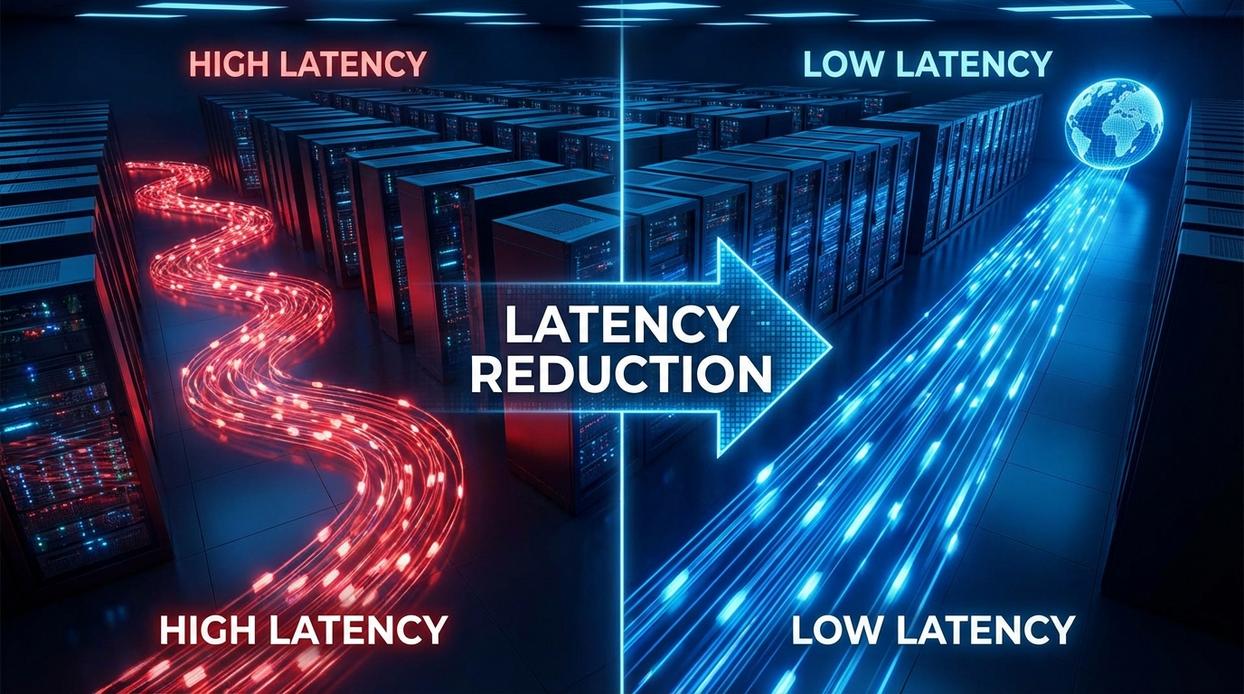
If your game feels slightly “off” even with solid FPS, the culprit is often hidden in your settings. Fortunately, a few targeted tweaks can dramatically improve responsiveness.
In-Game Settings Optimization
First, turn V-Sync OFF. V-Sync (short for Vertical Synchronization) matches your frame rate to your monitor’s refresh rate to prevent screen tearing. Sounds helpful—but it adds an input buffer, meaning your actions register a fraction of a second later. In competitive play, that’s the difference between landing the shot and watching the kill cam.
Next, enable Reduce Buffering, NVIDIA Reflex, or similar low-latency options. These features limit how many frames your system prepares in advance (called pre-rendered frames). Fewer queued frames = faster reaction time. Think of it like ordering one coffee at a time instead of lining up five.
Graphics Driver Configuration
Then move to your GPU software. In NVIDIA Control Panel, set Low Latency Mode to Ultra. On AMD systems, enable Anti-Lag in Radeon Software. Both settings reduce the render queue at the driver level, improving input lag reduction without sacrificing stability.
Pro tip: Update drivers before tweaking—outdated versions can override your changes.
Operating System Adjustments
Finally, disable Windows mouse acceleration. Go to Mouse Settings → Additional Mouse Options and uncheck Enhance pointer precision. This ensures raw, unfiltered input—your cursor moves exactly as your hand does.
Also enable Game Mode and close background apps (yes, even that browser tab). Fewer background processes mean more consistent frame delivery—and smoother gameplay overall.
Beyond the Basics: Pro-Level Tactics for Input Supremacy
First, let’s talk frame times. High FPS vs stable frame pacing isn’t the same fight. A game running at 240 FPS with erratic spikes can feel worse than 144 FPS with a flat frame-time graph. Why? Frame time is the time each frame takes to render; consistency means predictable input response. Think drummer with a metronome vs one speeding up mid-song.
Next, network stability: Wi-Fi vs wired is night and day. High ping mimics input lag reduction efforts gone wrong. Use Ethernet, enable QoS on your router, and select the closest server. Pro tip: test latency during peak hours.
Achieving a Seamless Connection With Your Game
You set out to eliminate the delay between your input and the action on screen—and now you understand how optimizing hardware, software, and in-game settings fixes the entire input pipeline. That split-second hesitation that’s been costing you fights, combos, and clutch moments isn’t random. It’s a solvable problem.
True input lag reduction only happens when you take a systematic, multi-layered approach. Every device, setting, and signal in the chain must work at peak speed.
Now it’s your move: apply these changes one by one, test the difference, and feel your responsiveness sharpen. Stop playing at a disadvantage—optimize today and experience the competitive edge you’ve been missing.
 Troy Brookshireynolds has opinions about core mechanics and campaigns. Informed ones, backed by real experience — but opinions nonetheless, and they doesn't try to disguise them as neutral observation. They thinks a lot of what gets written about Core Mechanics and Campaigns, Expert Insights, Hell-Level Game Challenges is either too cautious to be useful or too confident to be credible, and they's work tends to sit deliberately in the space between those two failure modes.
Reading Troy's pieces, you get the sense of someone who has thought about this stuff seriously and arrived at actual conclusions — not just collected a range of perspectives and declined to pick one. That can be uncomfortable when they lands on something you disagree with. It's also why the writing is worth engaging with. Troy isn't interested in telling people what they want to hear. They is interested in telling them what they actually thinks, with enough reasoning behind it that you can push back if you want to. That kind of intellectual honesty is rarer than it should be.
What Troy is best at is the moment when a familiar topic reveals something unexpected — when the conventional wisdom turns out to be slightly off, or when a small shift in framing changes everything. They finds those moments consistently, which is why they's work tends to generate real discussion rather than just passive agreement.
Troy Brookshireynolds has opinions about core mechanics and campaigns. Informed ones, backed by real experience — but opinions nonetheless, and they doesn't try to disguise them as neutral observation. They thinks a lot of what gets written about Core Mechanics and Campaigns, Expert Insights, Hell-Level Game Challenges is either too cautious to be useful or too confident to be credible, and they's work tends to sit deliberately in the space between those two failure modes.
Reading Troy's pieces, you get the sense of someone who has thought about this stuff seriously and arrived at actual conclusions — not just collected a range of perspectives and declined to pick one. That can be uncomfortable when they lands on something you disagree with. It's also why the writing is worth engaging with. Troy isn't interested in telling people what they want to hear. They is interested in telling them what they actually thinks, with enough reasoning behind it that you can push back if you want to. That kind of intellectual honesty is rarer than it should be.
What Troy is best at is the moment when a familiar topic reveals something unexpected — when the conventional wisdom turns out to be slightly off, or when a small shift in framing changes everything. They finds those moments consistently, which is why they's work tends to generate real discussion rather than just passive agreement.